
In this tutorial, we’ll walk through creating an abstract 3D shape like the one shown above. You’ll pick up essential techniques in basic modelling, lighting, materials, and rendering. Whether you’re building unique assets for projects or crafting striking desktop backgrounds, the possibilities are wide open.
Step 1: Add geometry to the scene
When you open Cinema 4D, you’ll see a blank canvas. Let’s start by adding some geometry.
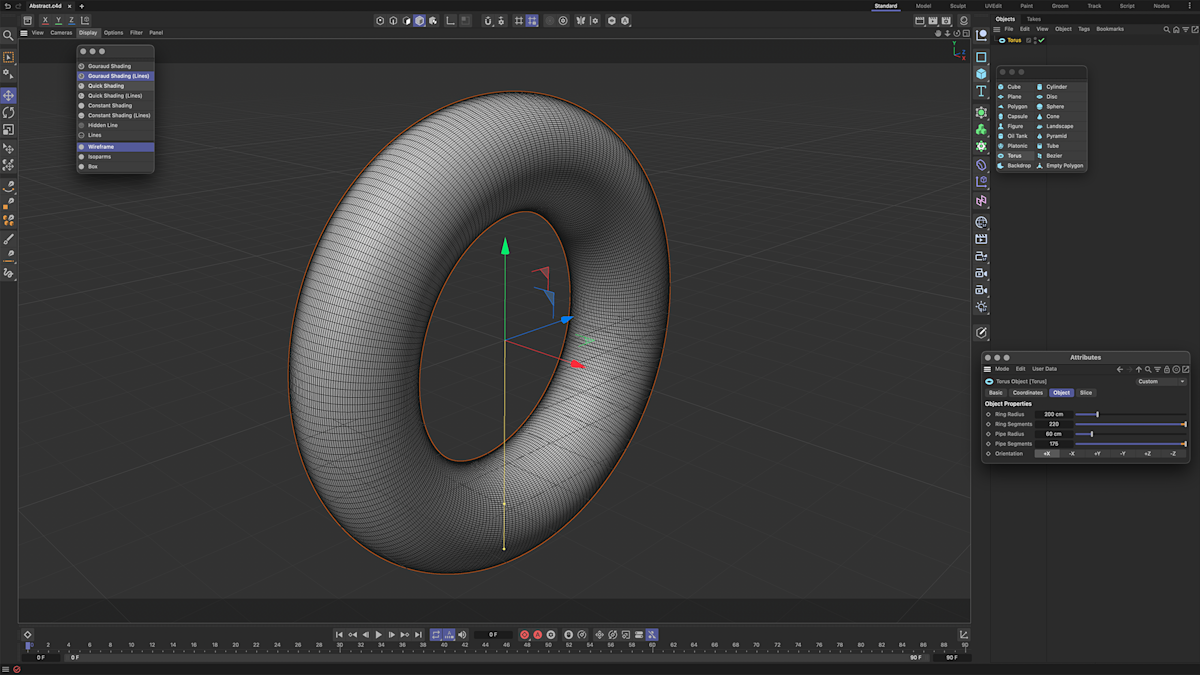
- Add a torus object to the scene
- Adjust the torus properties until you’re happy with the shape
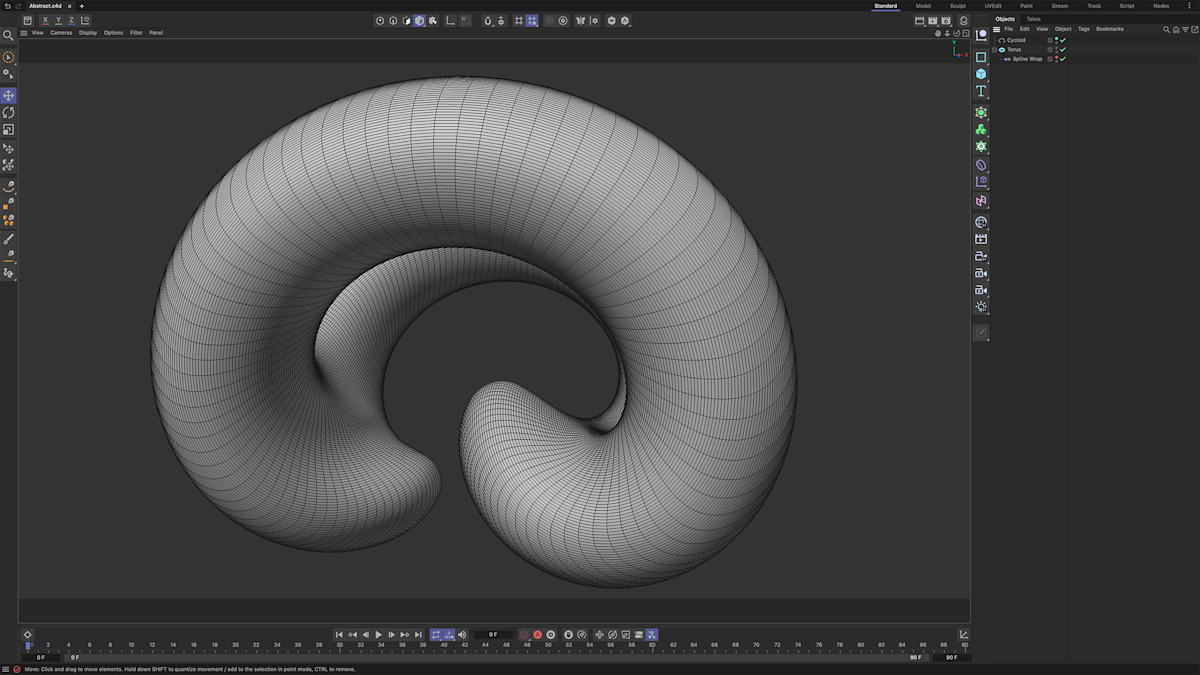
For a clearer view of your adjustments, switch to Gouraud Shading (Lines) in the display settings. This will help you see how each change affects the torus’s geometry.
Torus properties
- Ring radius
- 200cm
- Ring segments
- 220
- Pipe radius
- 60cm
- Pipe segments
- 175
- Orientation
- +X
Step 2: Deform the torus with a spline wrap
To give the shape more movement, let’s deform the torus using a spline wrap deformer.
- In the deformers menu, select spline wrap and make it a child of the torus (drag the spline wrap layer above the torus object)
- You won’t see any changes yet since we haven’t applied a spline
Adding and configuring the spline
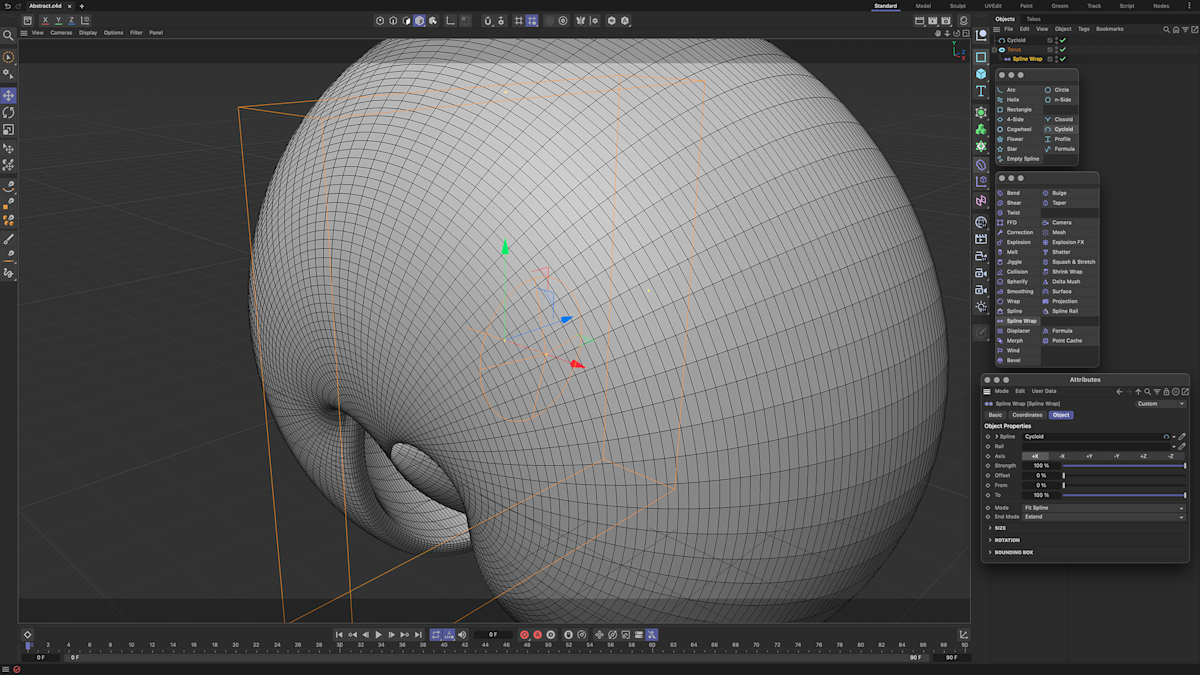
- Choose a cycloid spline from the spline options
- In the spline wrap’s object tab, drag the cycloid spline into the spline field to apply the deformation
The torus may look distorted initially because the deformation is applied along the wrong axis.
Correcting the deformation axis
To fix the distortion, adjust the deformation axis.
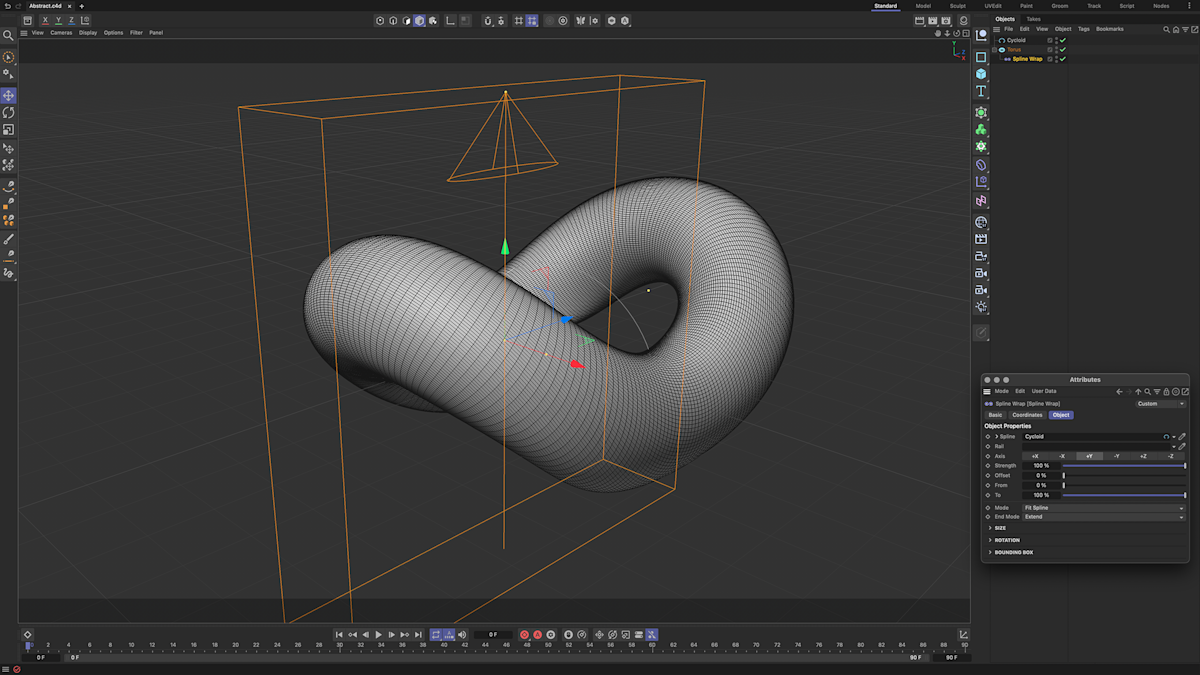
- In the spline wrap’s object tab, change the axis to +Y
- Your torus should now start to resemble the desired abstract shape
If it still looks off, try tweaking the torus or spline properties to refine the design further.
Step 3: Adjust the spline
Now, let’s refine the shape by making some adjustments to the spline.
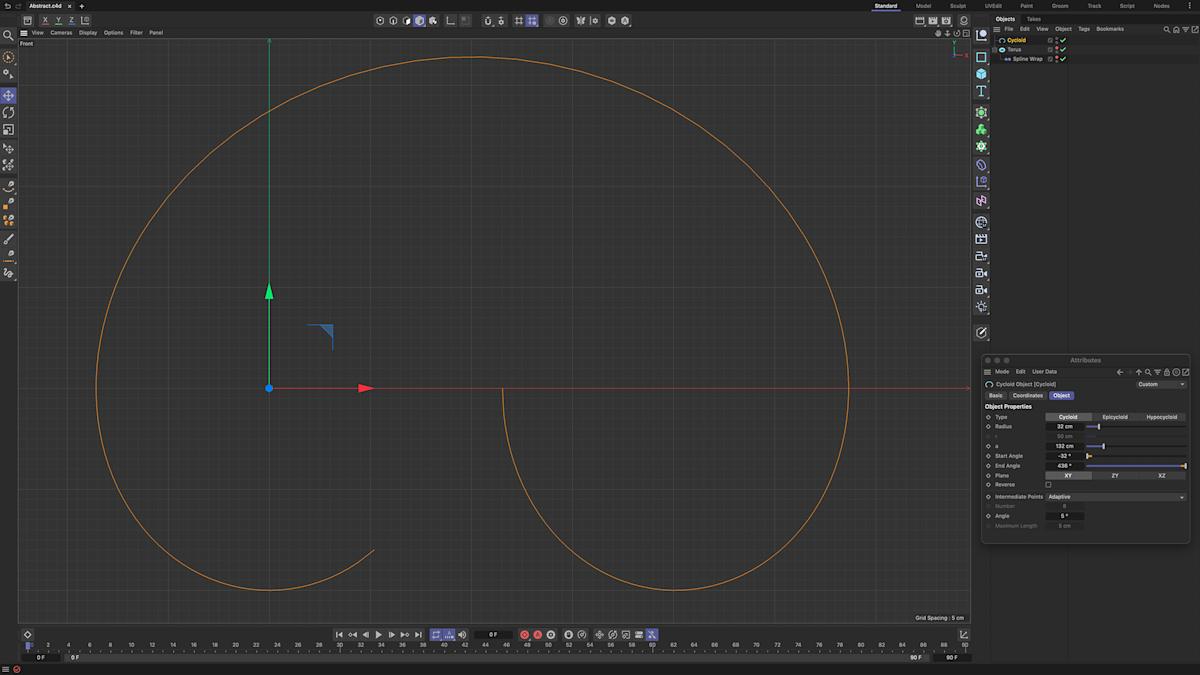
- Temporarily hide the torus to focus on the cycloid spline (click the traffic lights next to the object)
- Maximise the front view of the cycloid spline for a clearer look
- Tweak the spline’s properties until you achieve the desired result
Cycloid spline properties
- Radius
- 32cm
- Arc
- 132cm
- Start angle
- -32º
- End angle
- -436º
Step 4: Add displacer to the torus
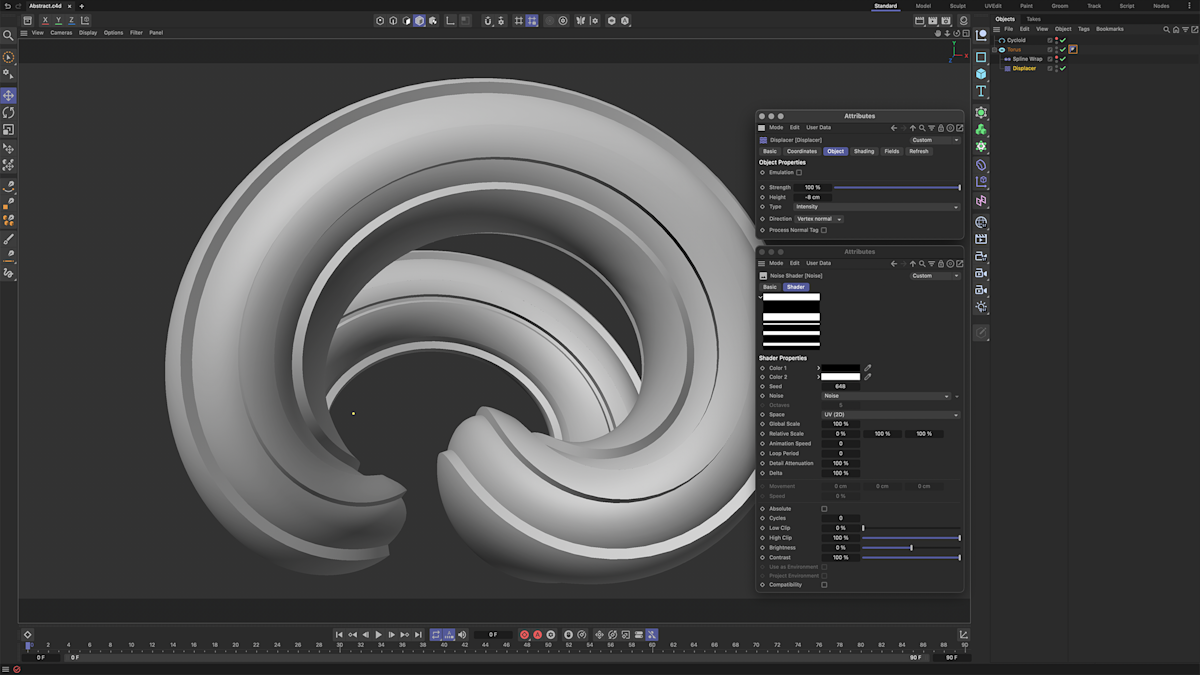
In this step, we’ll add a displacer to create ridges in the shape. Once you add the displacer, make it a child of the torus to activate it. Place the displacer below the spline wrap, as the order affects the final look.
Then, adjust a few key displacer properties to shape the ridges as desired.
Displacer object properties
- Strength
- 100%
- Height
- -8cm
- Type
- Intensity
Displacer shading properties
- Relative scale
- 0%, 100%, 100%
- Space
- UV (2D)
- Contrast
- 100%
- Seed
- 648
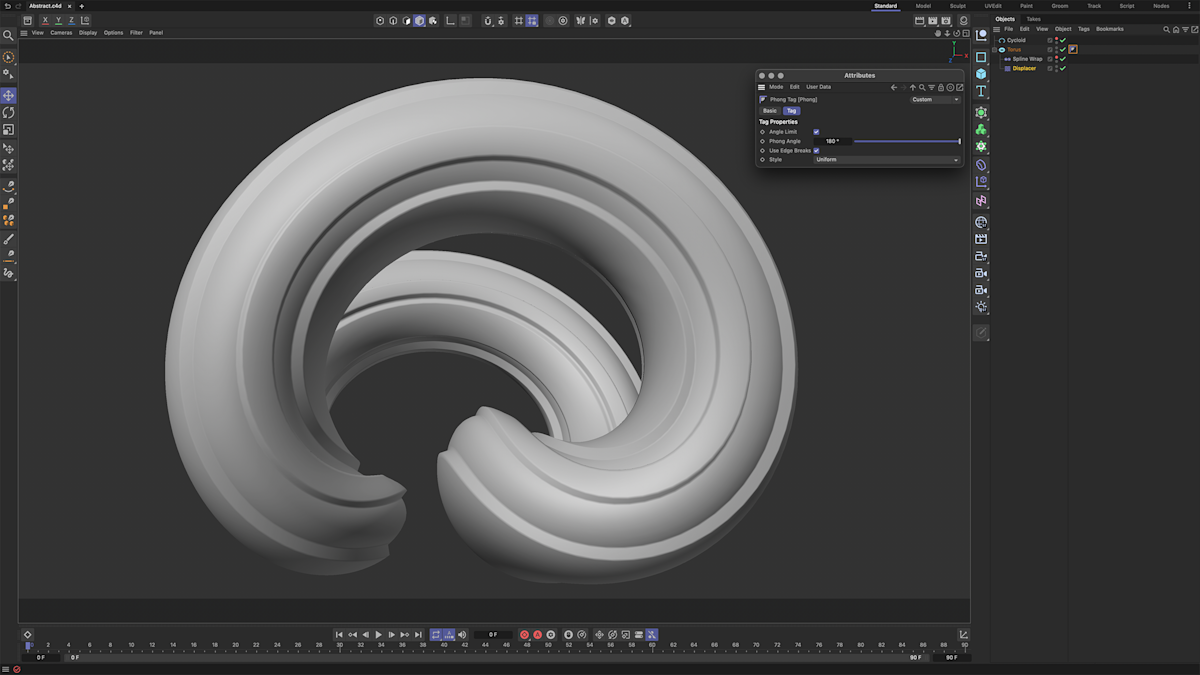
You can smooth the object by adding a phong tag to the torus.
- Right-click the torus, go to modelling tags → phong
- This will apply a phong tag to the torus. In the attributes panel for the phong tag, set the angle to 180º
This adjustment will smooth the object’s surface for a cleaner look.
Step 5: Add fine details using a subdivision surface
To add more detail, we’ll increase the geometry using a subdivision surface. This will smooth the object and create additional segments.
- Add a subdivision surface and make the torus its child
- Create a null object and make both the subdivision surface and displacer children of this null object
- Select the displacer’s object tab and adjust its settings as needed
Displacer object properties
- Height
- -1cm
- Type
- Intensity
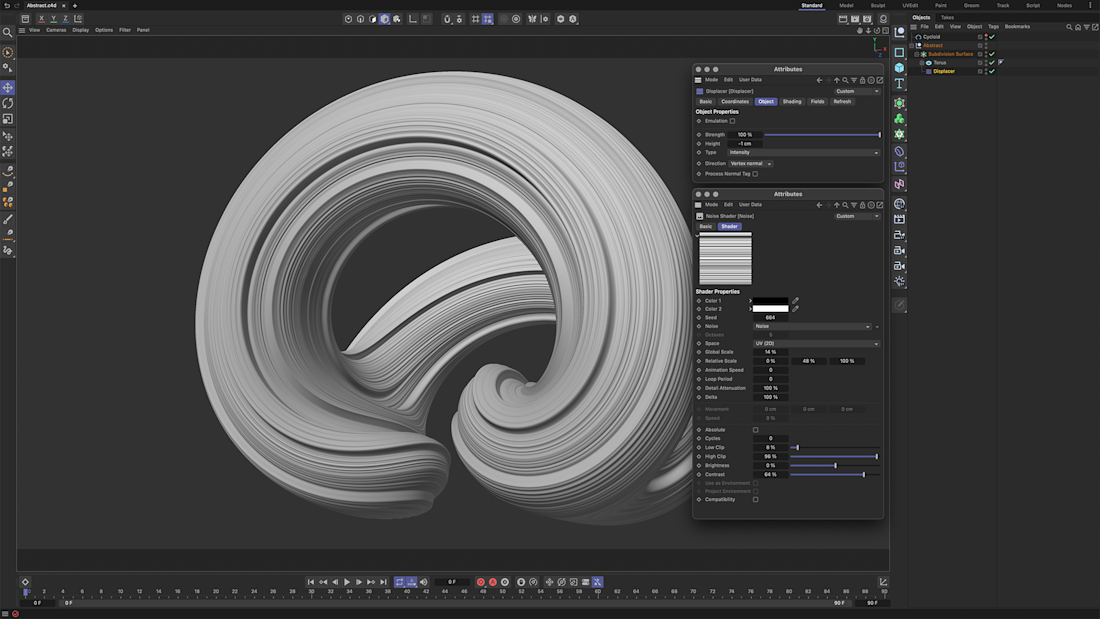
You won’t see any changes to the torus until we apply a noise shader. Here’s how to do it:
- Go to the shading tab and add a noise shader
- Once added, open the noise settings and tweak its attributes to shape the texture and detail
Feel free to experiment with the parameters to get the look you want. If you prefer, you can also use the values I’ve listed below for a similar effect.
Displacer shader properties
- Global scale
- 14%
- Relative scale
- 0%, 48%, 100%
- Space
- UV(2D)
- Low clip
- 8%
- High clip
- 96%
- Contrast
- 64%
Step 6: Add and position a camera
Now it’s time to set up the camera for rendering:
- Add a camera to the scene; it will be placed in your current view
- Activate the camera by clicking the icon next to the traffic lights in the object manager. Then, move and position the camera to achieve your desired angle
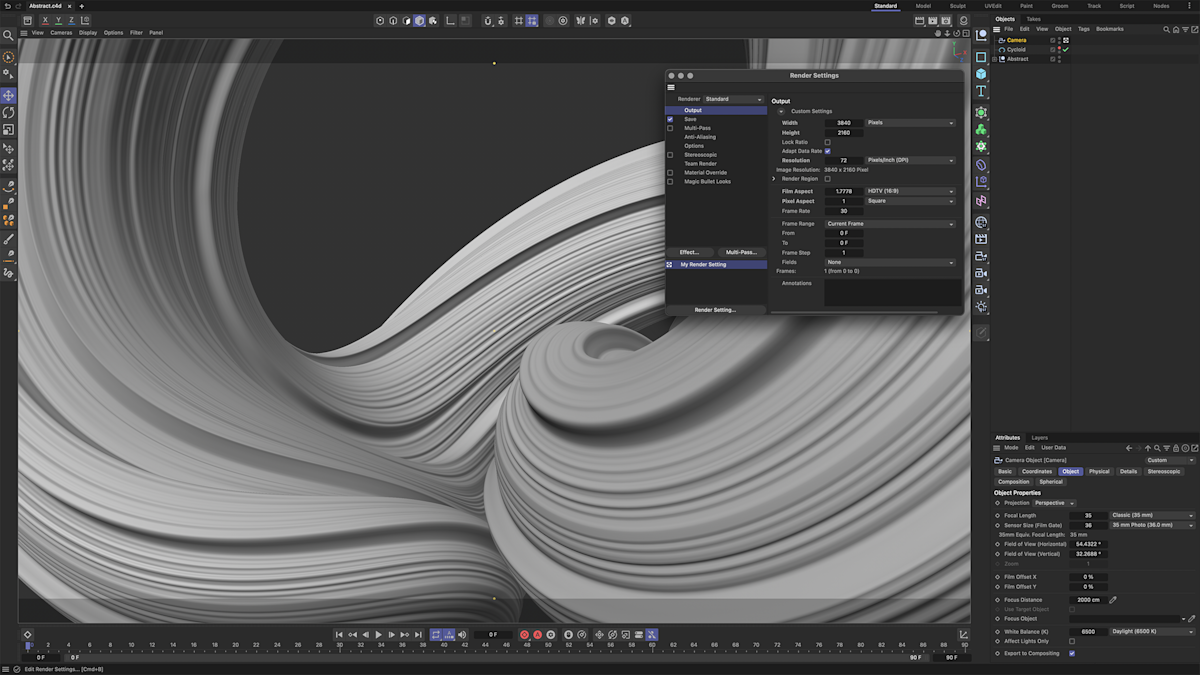
You can switch between the editor camera and your new camera view to fine-tune the scene. For this example, I used a 35mm focal length for a balanced look.
Finally, adjust the render settings. I opted for a 4K resolution (3840 x 2160) to ensure high-quality output.
Step 7: Adding lighting
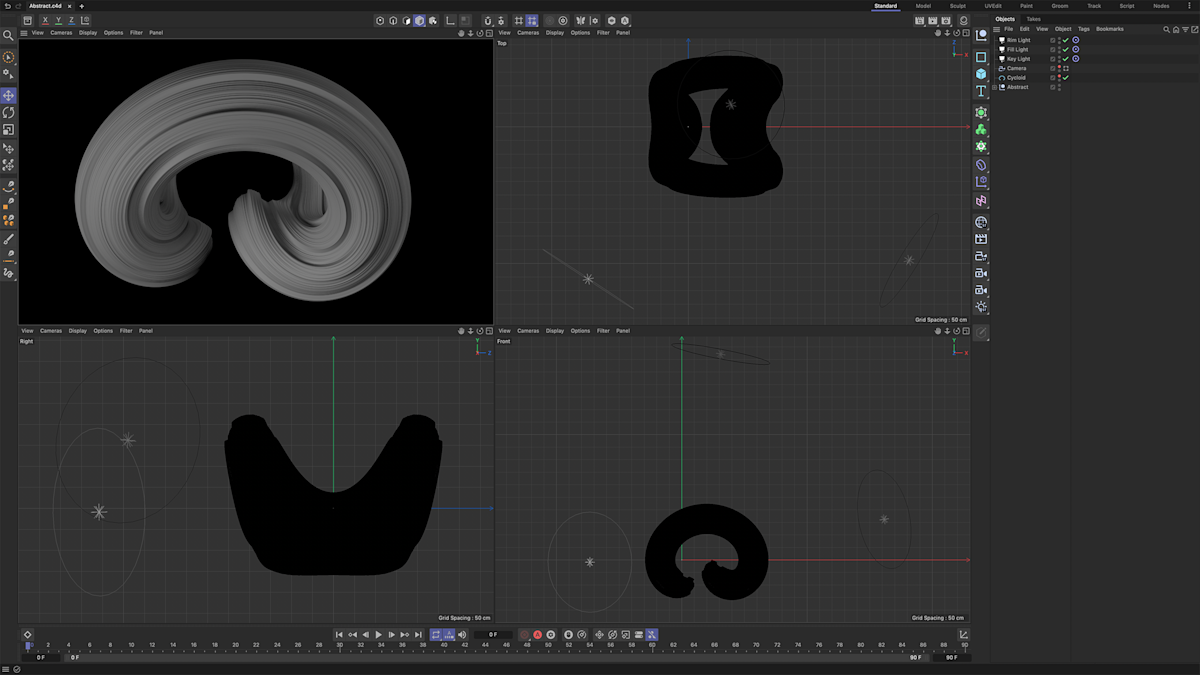
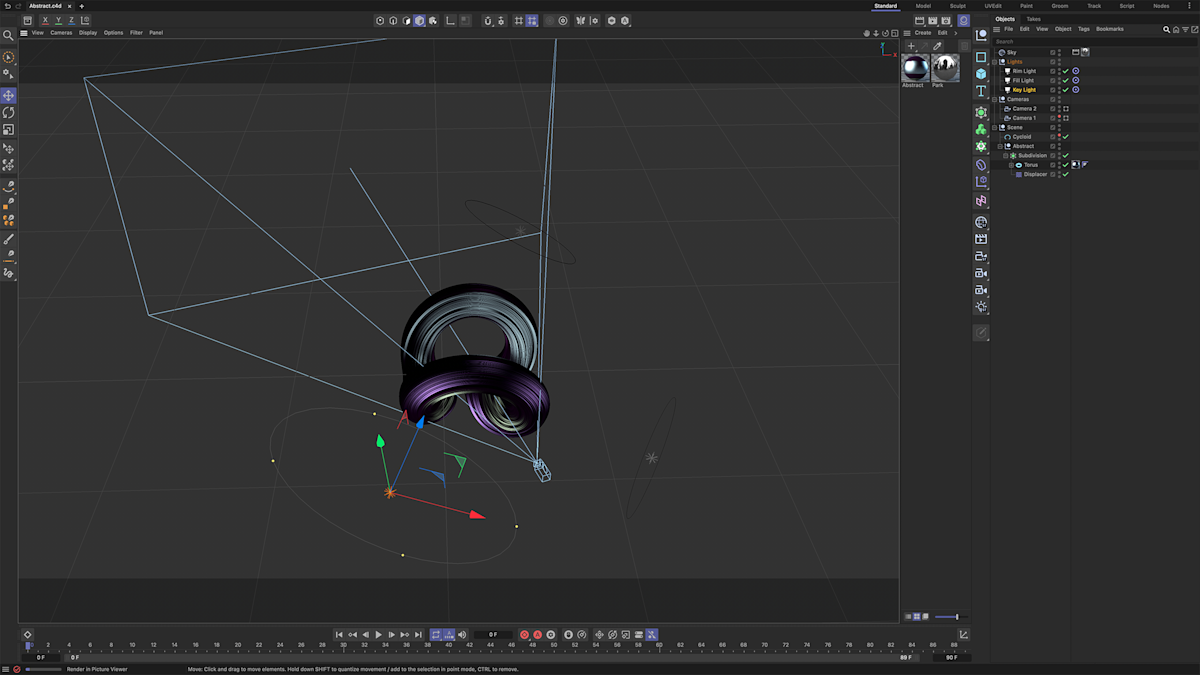
Lighting is essential for enhancing the final look of your design. We’ll use a three-point lighting setup, which includes a key light, fill light, and rim light.
Start by adding an area light to your scene. To ensure it always points at the torus:
- Right-click the light and go to Animation Tags → Target
- Drag the torus object into the target object field and rename this light to key light
Next, duplicate the key light twice to create a fill light and a rim light. Here’s how to position and adjust them:
- The key light is your main light source, so set its intensity to 60%
- The fill light softens shadows. Place it opposite the key light and reduce its intensity to 40%
- The rim light should be positioned above or behind the object to separate it from the background, also set to 40% intensity
For the best results, toggle each light on and off individually to see how they affect the scene, and adjust their positions as needed to achieve your desired look.
Step 8: Create environment for reflections
Before we create our environment, let’s do some housekeeping.
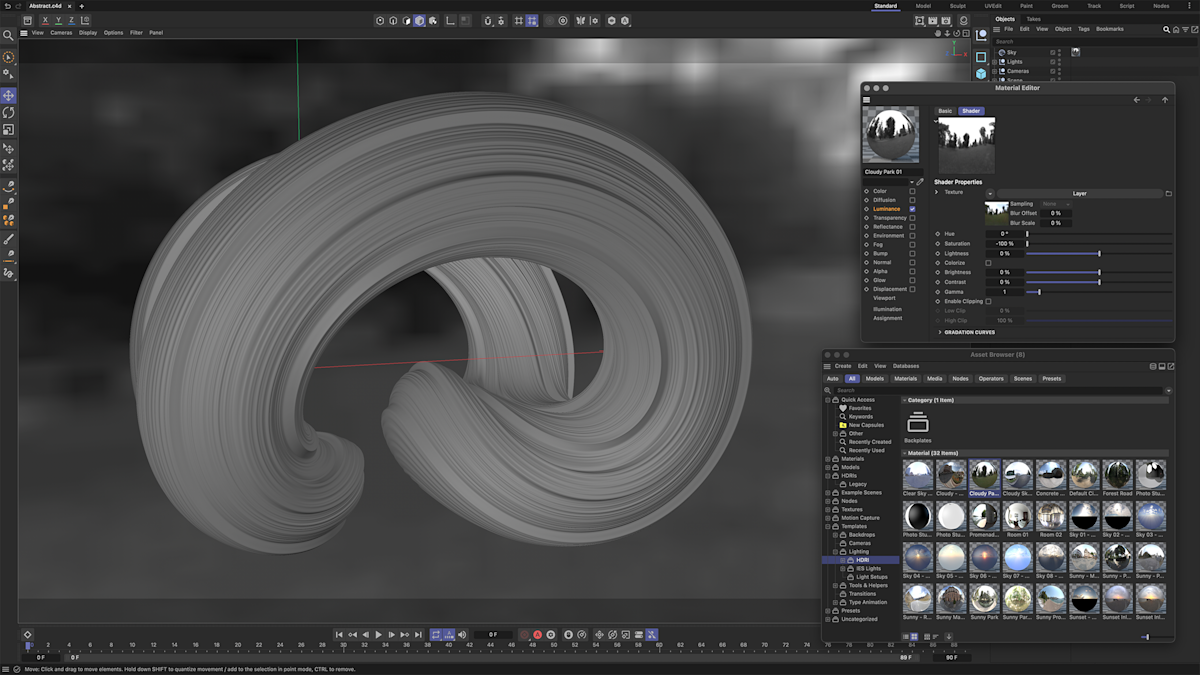
Organise your elements into nulls; I recommend three: one for your lights, one for your cameras, and one for your scene. To set up the environment, start by adding a sky object and applying an HDRI image to it.
- Go to File → Window → Asset Browser
- Choose an HDRI image you like and drag it onto your sky object or the editor background
- Remove any colour from your HDRI image by reducing the saturation to -100%
You can hide the HDRI image from the camera view while still using it for reflections. To do this, add a compositing tag to the sky:
- Right-click the sky object, then go to Render Tags → Compositing
- In the compositing settings, uncheck seen by camera
Step 9: Adding materials
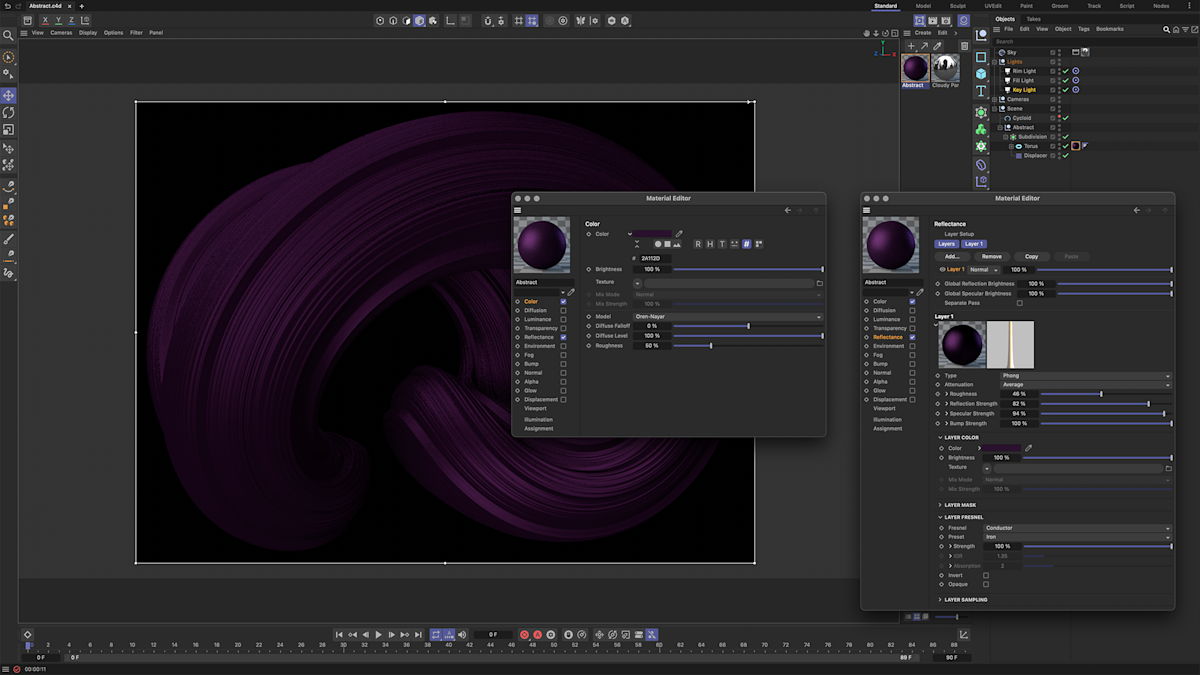
Next, let’s add materials to the torus. We’ll focus on two channels: the colour channel and the reflectance channel. For now, we’ll only work with the colour channel, so make sure to disable the reflectance channel.
You can also activate an interactive render region to see how your changes affect the model in real-time, making it easier to adjust the materials as needed.
Colour settings
- Color
- #2A112D
- Model
- Oren-Nayar
Now that we’re done with the colour channel, let’s move on to the reflectance channel.
- Enable the reflectance channel and delete the default layer that was added
- Create a new layer and add the following properties, or feel free to adjust them to suit your preference
Reflectance settings
- Type
- Phong
- Roughness
- 46%
- Reflection strength
- 82%
- Specular strength
- 94%
- Color
- #2A112D
- Mix mode
- Add
- Fresnel
- Conductor
- Preset
- Iron
Step 10: Adding colour streaks
It’s time to add some colour to our shape, aiming for something similar but not identical to the example. There are countless ways to achieve this!
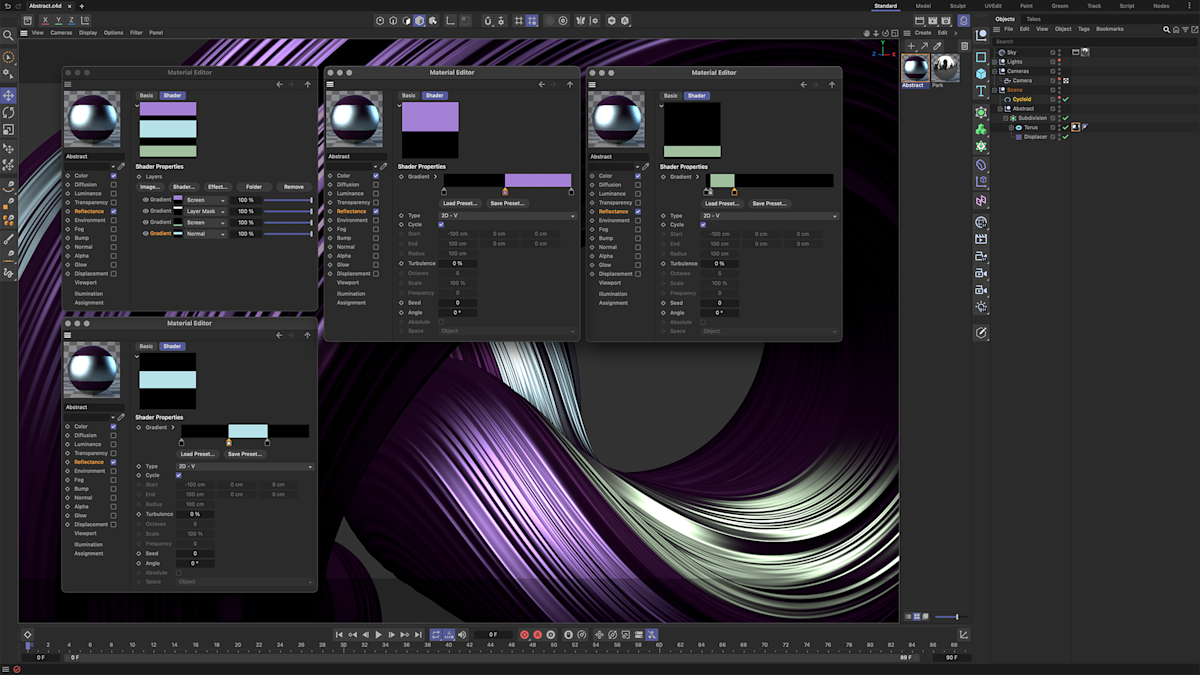
- Select your material by double-clicking on it. In the reflectance channel, go to texture and add a new layer to house all your gradients
- Start building your style by adding multiple gradients, blending modes, and layer masks to hide certain parts
This process is quite similar to using Photoshop and gives you a chance to unleash your creativity! When working with a gradient, make sure to set the type to 2D-V to ensure the effect follows the shape correctly.
For added control over the transition, right-click on the gradient swatches and select Interpolation of All Knots → Step. This will give you a more defined look instead of a soft gradient blend.
Step 11: Render the scene
We’re now at the final stage of preparing our composition and adjusting the render settings. You might need to make a few tweaks to get the perfect output for your final render.
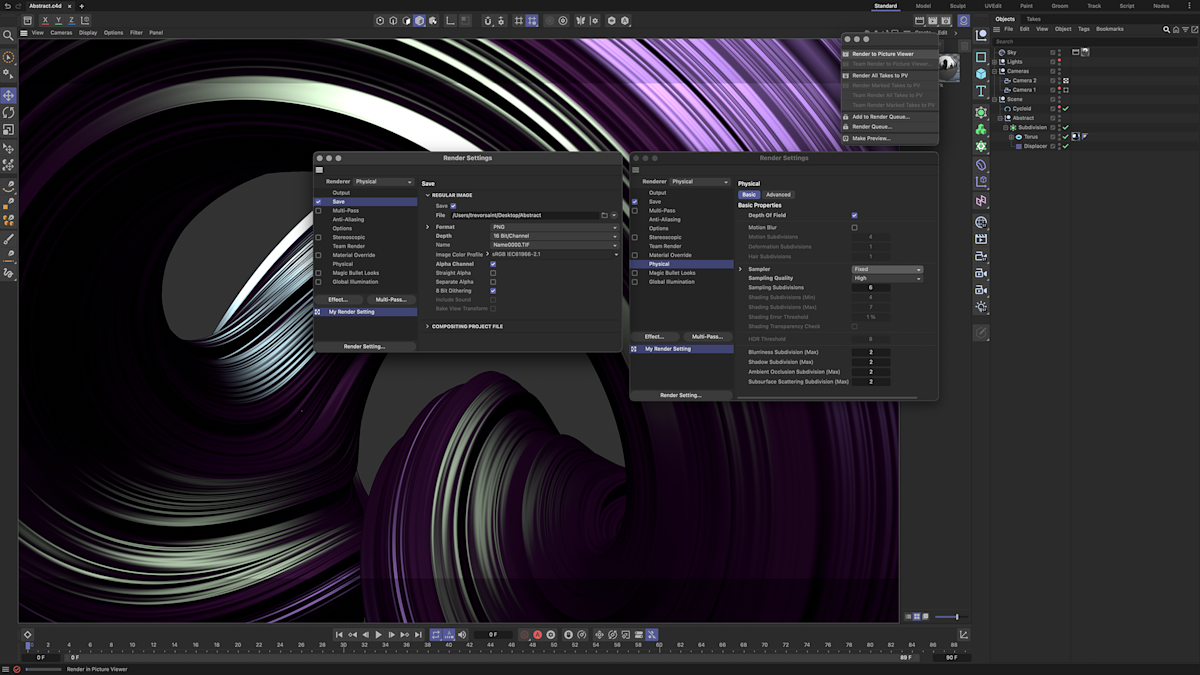
I adjusted several elements in my scene, like light size and position, and I also added a second camera to capture a better shot.
Once you’re satisfied with everything, head to your render settings and make adjustments based on the values below.
Render settings
- Renderer
- Physical
- Sampler
- Fixed
- Sampling quality
- High
- Format
- PNG
- Depth
- 16 Bit
- Alpha channel
- Checked
Conclusion
By following these steps, you now have a stunning abstract 3D shape ready for rendering. Don’t hesitate to explore various splines, deformers, shaders, and colours to create an array of unique designs!
I hope you enjoyed this tutorial as much as I enjoyed creating it! I’d love to see your creations, and any feedback you have would be greatly appreciated.